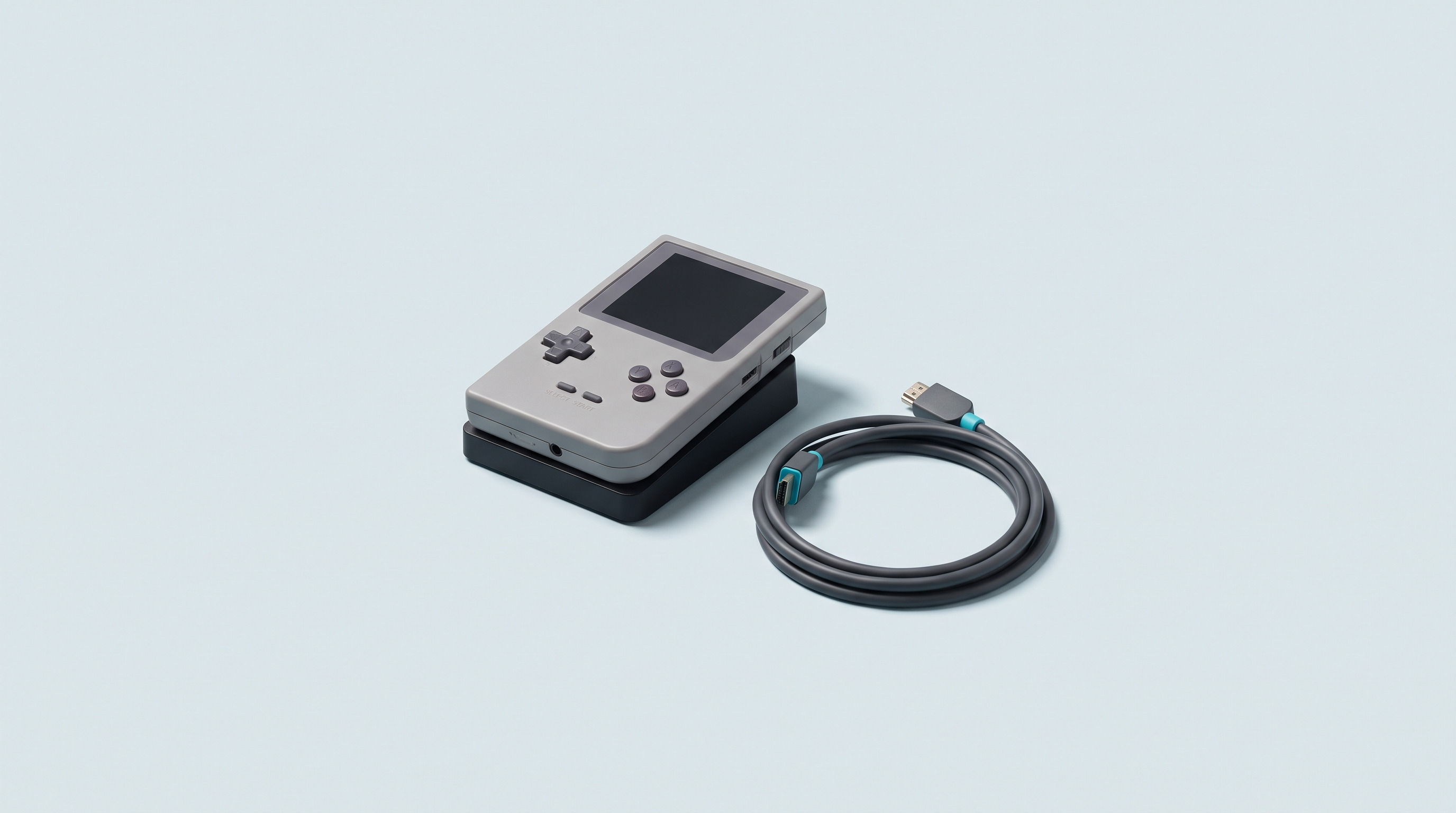
A retro handheld hooked up to the TV, two controllers, and your living room turns into a weekend arcade. On paper, all it takes is a cable. In practice, a good half of the machines sold today have no way of sending a picture to an external screen, and the "USB-C to HDMI" cable bought in a hurry will only give you a black screen. It is neither a faulty cable nor a hidden setting: the console's port simply can't do it. Here is how to check before you buy, and how to get a decent picture when the machine allows it.
It all comes down to one thing: where the picture comes out
A handheld console can send a picture to a TV in only two ways. Either it has a dedicated video connector, in practice a mini-HDMI port on the machines we are interested in. Or it goes through its USB-C port, provided that port can carry a video signal.
There is no third way. Neither Wi-Fi, nor Bluetooth, nor an app can replace an output the hardware doesn't have.
The USB-C port does three jobs, and rarely all three at once
The USB-C connector is a shape, not a function. Behind the same oval socket, a manufacturer can wire charging only, charging and data, or charging, data and video. That last capability is called DisplayPort Alternate Mode, or DP Alt Mode. It has to be present in the chip and in the wiring. No software update can add it afterwards.
This is where everyone gets caught out. You plug a USB-C to HDMI adapter that works with your laptop into a console whose port only handles charging, and nothing happens. The adapter is not to blame: it is waiting for a DisplayPort signal the console doesn't send.
The TrimUI Brick illustrates the confusion. It has two USB-C ports: the top one is a host port for a wired controller, the bottom one is for charging and OTG. Neither carries video. The number of sockets tells you nothing about what goes through them.
What the machines in our catalogue actually do
The table below draws on manufacturer listings and independent reviews, machine by machine. Rows marked "to be confirmed" are those for which we found no clear source: we would rather say so than guess.
| Family | Video output | What you need |
|---|---|---|
| Anbernic Linux H700: RG35XX Pro, RG35XX H, RG35XX SP, RG40XX H, RG 40XXV, RG34XX, RG28XX, RG CubeXX | Yes, dedicated mini-HDMI port | A mini-HDMI to HDMI cable, or a mini-HDMI adapter |
| Anbernic RG353V and RG353PS (RK3566) | Yes, HDMI output stated by the manufacturer | A cable that fits the machine's connector |
| Miyoo Mini Plus | No, none | Not applicable |
| TrimUI Brick and TrimUI Smart Pro | No, none (Smart Pro S to be confirmed) | Not applicable |
| Powkiddy RGB20S | No documented output | Not applicable |
| Powkiddy X55 | HDMI output | HDMI cable |
| Anbernic Android RG556, RG557, RG 477M | Yes, USB-C with 1080p DisplayPort | USB-C to HDMI adapter compatible with DP Alt Mode |
| Other Anbernic Android models: RG406V, RG406H, RG476H, RG 477V, RG Slide, RG DS | To be confirmed listing by listing | Check for the "display port output" statement in the listing |
| Retroid Pocket 5, Pocket 6, Pocket 4 Pro | Yes, HDMI picture via the official dock | DP Alt Mode adapter or official dock |
| Retroid Pocket Flip 2 | Yes, 1080p DisplayPort over USB-C | USB-C to HDMI adapter |
| Retroid Pocket Classic | Not documented, to be confirmed | Don't count on it |
| AYN Odin 2 Portal | Yes, USB-C; official dock up to 4K 60 Hz (Thor to be confirmed) | Adapter or Odin 2 dock |
| Asus ROG Ally X and ROG Xbox Ally | Yes, USB-C DisplayPort, plus Thunderbolt 4-compatible USB4 with DisplayPort 1.4 on the Ally X | USB-C adapter, dock or docking station |
| MSI Claw | Yes, Thunderbolt 4 with DisplayPort and Power Delivery | Thunderbolt adapter or dock |
The overall picture is simple. The Anbernic Linux models with the H700 chip are the only affordable machines in our catalogue that offer a real video output through a dedicated connector. Miyoo and TrimUI models don't have one, and that will never change. On the Android and Windows side, output goes through USB-C, with capabilities that vary widely from one model to the next. If playing on the TV matters in your choice, the comparison tool lets you filter before you order.
A simple adapter, or a dock?
When an adapter is enough
For a Linux machine with mini-HDMI, a mini-HDMI to HDMI cable does all the work. The console runs on its battery, and the controller connects via Bluetooth or 2.4 GHz. For a two-hour evening session, that is enough.
For an Android machine with USB-C output, a USB-C to HDMI adapter advertised as DP Alt Mode compatible is enough. "3-in-1" models add a USB-C charging socket and a USB-A port, which solves the power question without moving up to a full dock.
When a dock becomes necessary
A dock becomes useful as soon as you want several things at once: the picture, charging, two or three wired controllers, sometimes a network cable. The official AYN dock for the Odin 2 outputs up to 4K 60 Hz and accepts power input up to 100 W, with USB, Ethernet and an M.2 slot. The official Retroid dock also advertises 4K 60 Hz and states compatibility with the Pocket 5, Pocket 6 and Pocket 4 Pro, but not with the D900 version of the Pocket 4.
One piece of advice comes up with several manufacturers: turn the console on first, then plug in the cable or place it on the dock. Odin 2 users report getting no picture when the console is docked before booting, and the reference guide for the Anbernic H700 models recommends the same under Knulli.
Resolution and scaling: why it looks blurry
A Super Nintendo game displays 256 by 224 pixels. A PlayStation 1 game often runs at around 320 by 240. Your TV displays 3840 by 2160. The picture therefore has to be multiplied by a factor that is almost never a whole number, and that is where the blur comes from.
When the factor is not a whole number, some original pixels take up three screen pixels and their neighbours only two. On sprites drawn pixel by pixel, this gives lines of uneven thickness. On 3.5 inches, nobody notices. On 55 inches, everybody does.
Three levers help limit the damage.
- Choose the right output resolution. Outputting in 1080p rather than 4K often gives a cleaner result, because 1080 is a more convenient multiple of the original heights and because it avoids an extra processing stage in the TV.
- Enable integer scaling when the firmware offers it. The picture then fills a smaller area, framed by black bars, but each original pixel becomes a perfect square. The MinUI firmware is known for handling scaling correctly over HDMI output; other firmwares vary. Our firmware compatibility table and the article on installing a custom firmware detail what each one can do.
- Turn off your TV's processing. Noise reduction, edge enhancement, motion interpolation: these filters are designed for films, not sprites. Switch the HDMI input to Game mode, which turns them all off at once and reduces display latency along the way.
Controllers, once you're on the TV
As soon as the console is two metres away, its own buttons are no use. There are three options, and they are not equal.
Bluetooth is the most convenient and is found on almost all recent machines. It adds a few milliseconds of latency, painless in an adventure game, noticeable in a fighting game. 2.4 GHz with a USB receiver is more responsive, but it takes up a port: on a console with a single USB-C connector, that means a dock or a multiport adapter. Wired remains the benchmark and raises no pairing questions.
A detail that wastes time: player assignment follows the connection order, so turn the controllers on one at a time. Our retro controllers section brings together the models whose behaviour we have checked with these consoles.
Power during the session
Video output uses power. The internal screen often stays on, the graphics chip works harder, and the battery life advertised for handheld use no longer applies.
On Windows machines, the ports are designed for it: the USB4 on the ROG Ally X and the Thunderbolt 4 on the MSI Claw advertise DisplayPort and Power Delivery on the same connector. On Android and Linux machines, it varies more, as with the RG556 mentioned above.
Two tips. Use a proper charger rather than an old 5 W brick, otherwise the console will still drain while you play. And avoid unpowered USB-C hubs, which draw power from the console instead of supplying it.
The limits, stated plainly
These machines are not home consoles, and video output remains a secondary feature in their development. Output often tops out at 1080p, even when the dock advertises 4K: it is the dock that accepts 4K, not necessarily the console that produces it. Alternative firmwares handle HDMI output unevenly, and an update can break what used to work. Sound goes through HDMI most of the time, but you sometimes have to force it in the settings.
If the living room is your main use, a more powerful Android machine with an official dock will go the distance better than a small €100 Linux handheld: our article Android or Linux sets out the trade-offs. If the TV remains an occasional bonus, an Anbernic H700 and a mini-HDMI cable settle the matter for a few euros.
Frequently asked questions
My USB-C to HDMI cable shows nothing, is it faulty?
In the vast majority of cases, no. If the cable works with a laptop or a phone, it is fine. The problem lies with the console's port, which does not support DisplayPort Alternate Mode. Check the manufacturer's listing: without an explicit mention of a display port output, there is nothing to fix.
Can you connect a Miyoo Mini Plus or a TrimUI Brick to the TV?
No. These machines have no video output at all, neither an HDMI connector nor video over USB-C. Independent reviews explicitly mention it in their lists of limitations. No adapter, no firmware and no workaround can create an output that doesn't exist in the hardware.
Should you buy the official dock or a generic dock?
A well-made generic dock works in most cases, since the console sends a standard DisplayPort signal. The official dock has two advantages: its shape fits the machine and the manufacturer has validated the combination. For occasional use, a three-in-one adapter costs far less than a full dock.
Why are my retro games blurry on a 4K TV when they are sharp on the console?
Because a 240-line picture has to be multiplied by a non-integer factor to fill 2160 lines. Some pixels are stretched more than others and the image smears. Output in 1080p, enable integer scaling if your firmware offers it, and switch the TV's HDMI input to Game mode.
Does the console's screen turn off when I connect the TV?
It depends on the machine and the firmware. Some switch entirely to the external output, others display on both screens at once, which uses more power. This behaviour can change from one firmware version to the next: it is something to check on your own setup rather than a general rule.
Can you play plugged into the mains for the whole session?
On Windows consoles, yes, their ports support DisplayPort and power at the same time. On Android and Linux machines, it depends on the model: Anbernic states, for example, that the RG556 does not output over HDMI while charging. A multiport adapter or a dock with a dedicated power input works around the problem on most machines.
Going further
The hardware comes down to very little: the right cable, possibly a multiport adapter, and a controller that is comfortable two metres from the screen. Our handheld console accessories bring these parts together, and each listing specifies which family of machines it is compatible with. If you are unsure about your model, write to us before ordering.