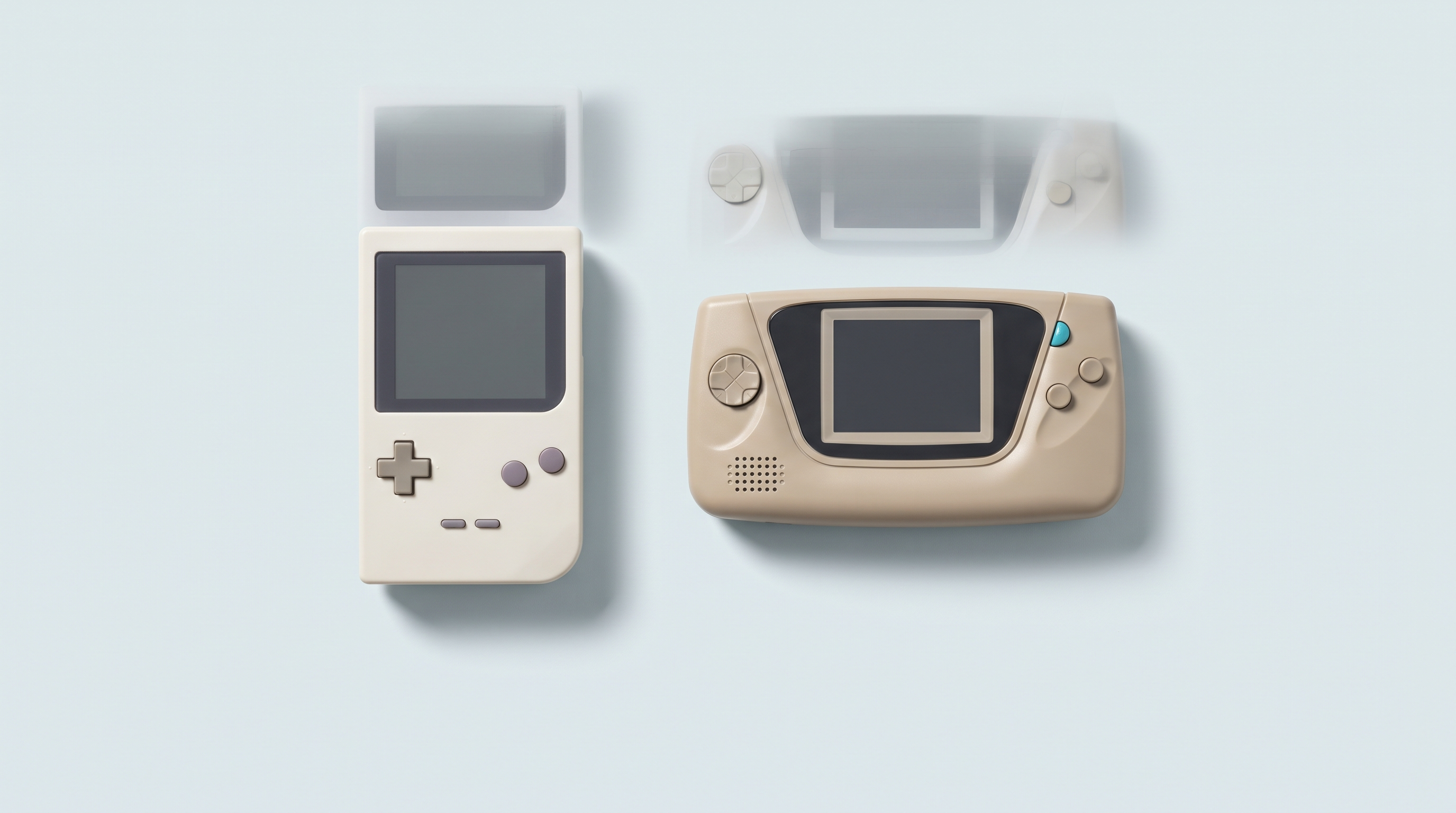
A Super Nintendo game leaves the console at 256 × 224 pixels. A PlayStation game, at 320 × 240 most of the time. A Game Boy Advance, at 240 × 160. None of these figures matches the panel of a modern handheld console, and almost none matches the 16:9 format the industry has imposed everywhere for the past twenty years. Between the game and your screen, there is therefore always a resizing step — and that is what decides whether the picture will be sharp or soft, correctly proportioned or distorted.
Choosing a screen format means choosing which games will be served properly and which will have to put up with black bars. Here is how to decide.
Almost everything you want to play is 4:3
The dividing line is clear: it falls around the PSP. Everything before it was designed for a 4:3 CRT television, or for a small handheld screen with the same proportions. NES, Master System, Super Nintendo, Mega Drive, Neo Geo, PlayStation, Nintendo 64, Dreamcast, 1980s and 1990s arcade games: all 4:3.
Two exceptions among the common systems. The Game Boy Advance displays 240 × 160, which is exactly 3:2. And the PSP moved to 480 × 272, which is practically 16:9. These two don't behave like the rest.
One detail complicates the picture: on home consoles, pixels were not square. A 256 × 224 Super Nintendo image was stretched horizontally by the television to fill a 4:3 frame. Respecting the original proportions and respecting the pixel grid are therefore two different goals.
What really happens on a 16:9 screen
A 16:9 screen is wider than it is tall. A 4:3 image cannot fill it without a compromise. There are only three outcomes, and your emulator applies one of them.
Black bars on the sides
This is the default behaviour, and it is the right one. The image keeps its proportions, and the unused space stays black on each side. On a 5.5-inch 1920 × 1080 screen, a 4:3 game takes up 1440 × 1080, the equivalent of a screen of around 4.5 inches. You pay for diagonal you don't use, but the image is correct.
Horizontal stretching
Some firmwares offer to fill the panel by stretching the image. Characters get fatter, circles become ovals, faces widen. With pixel art, the effect is immediately visible because squares become rectangles. Best avoided, unless it is a deliberate personal preference.
Cropping
Rarer: the image is enlarged until it fills the width, with the top and bottom cut off. You lose the interface, the health bar or the timer. Unusable in most games.
Integer scaling, explained
Enlarging an image means deciding how many screen pixels represent one game pixel. When the ratio is a whole number — two, three, four — each original pixel becomes a perfect square of identical pixels. The result is sharp, even and free of smearing.
When the ratio doesn't come out even — 2.7, for example — the calculation has to distribute a remainder. Some rows of pixels are doubled, others are not. Thin lines no longer have the same thickness from one place to another, and the image shimmers during horizontal scrolling. This is the main cause of the "dirty" look that many people notice without being able to name it.
Some combinations come out perfectly even, and they are what make a screen pleasant to use:
- 320 × 240 (PlayStation, Nintendo 64) on a 640 × 480 panel: ×2 enlargement, exact full screen.
- 240 × 160 (Game Boy Advance) on a 720 × 480 panel: ×3 enlargement, exact full screen. This is precisely the resolution of the Anbernic RG34XX's 3:2 screen.
- 320 × 240 on a 960 × 720 panel (RG406V) or on the 4:3 area of a 1280 × 720 screen: ×3, full frame.
- 320 × 240 on a 1280 × 960 panel (RG 477M): ×4, exact full screen.
Others work out less well. On a 640 × 480 screen, a Game Boy Advance game can only be enlarged ×2, giving 480 × 320: on a 3.5-inch panel, the image covers a diagonal of around two and a half inches. You then have to choose between a small, perfectly sharp image and a full-frame image that is slightly uneven.
Settings > Video > Scaling, with the integer scaling option and the aspect ratio choice. Custom firmwares often expose the same settings under other names. An excellent screen that is badly configured looks worse than a modest screen that is well configured.Back to non-square pixels: integer scaling forces square pixels, so a Super Nintendo image comes out slightly narrower than on a period television. If faithful proportions come first, keep the 4:3 ratio and accept a non-integer horizontal enlargement. If sharpness comes first, enable integer scaling. There is no universal answer.
The 4:3 screen: what it gives you, what it costs
At the same diagonal, the usable area for a 4:3 game is much larger than on a 16:9 screen: a 4-inch 4:3 screen displays a Super Nintendo game larger than a 5-inch 16:9 screen. The resolutions of these panels — 640 × 480, 960 × 720, 1024 × 768, 1280 × 960 — are also clean multiples of 320 × 240.
The cost is real. The PSP, at 480 × 272, ends up with wide black bars at the top and bottom: on a 4:3 screen, it only takes up a fraction of the panel. The same goes for Dreamcast or PlayStation 2 games in 16:9. On an Android console, the problem grows: Play Store games, video and the system interface are all designed for 16:9.
The rule of thumb: if your library stops at the Dreamcast, 4:3 is the right choice; if the PSP, the PS2 or recent Android games carry a lot of weight, 16:9 regains the advantage. Our Android versus Linux comparison follows this same boundary, and our article on PSP emulators covers this case in detail.
Unusual formats
3:2
The RG34XX has a 3.4-inch 720 × 480 panel, the native format of the Game Boy Advance: the ×3 enlargement fills the screen down to the pixel. For a player who mainly plays GBA, no 4:3 screen does better. A PlayStation game takes up 640 × 480 with thin side bars, which is still very good.
Square
The RG CubeXX displays 720 × 720 on 3.95 inches. A 4:3 game takes up 720 × 540 and leaves a bar at the bottom, with a generous usable area for this size. The real appeal of the square format lies elsewhere: vertical-screen arcade games and the Game Boy at 160 × 144, where ×4 gives 640 × 576 with no trouble. A niche format, but a deliberate one.
Odd resolutions
The Retroid Pocket Classic has a 3.92-inch AMOLED panel at 1240 × 1080, a ratio of around 1.15:1. The format feels nice in the hand, but no retro system fits it evenly: a PlayStation game at ×3 measures 960 × 720 and leaves empty space all around, while ×4 overflows the width. It is not a deal-breaker, but it is worth knowing before you buy.
The TrimUI Brick's 1024 × 768
On 3.2 inches, this resolution is high for the category. It allows ×3 for the Super Nintendo (768 × 672), ×3 for the PlayStation (960 × 720) and ×4 for the Game Boy Advance (960 × 640): one of the most versatile panels in its range, provided you accept the small diagonal. The models are in our TrimUI section.
Which screen for which system
| System | Native resolution | Format | Recommended screen |
|---|---|---|---|
| Game Boy / Game Boy Color | 160 × 144 | 10:9 | Any screen; square and 4:3 at 640 × 480 give a clean ×3 or ×4 |
| NES / Master System | 256 × 240 | 4:3 as displayed | 4:3; ×2 on 640 × 480 fills the height |
| Super Nintendo / Mega Drive | 256 × 224 and 320 × 224 | 4:3 as displayed | 4:3, ideally 1024 × 768 or 1280 × 960 for ×3 or ×4 |
| Game Boy Advance | 240 × 160 | 3:2 | 3:2 at 720 × 480 (exact full screen), otherwise high-resolution 4:3 |
| Neo Geo / horizontal arcade | 320 × 224 typical | 4:3 | 4:3 |
| Vertical arcade | 224 × 320 typical | 3:4 | Square screen, or 4:3 with a rotated image |
| PlayStation / Nintendo 64 | 320 × 240 most of the time | 4:3 | 4:3; 640 × 480, 960 × 720 or 1280 × 960 give an exact full screen |
| Nintendo DS | 256 × 192 per screen | 4:3 each | 4:3 or vertical format; the two stacked screens fit poorly on 16:9 |
| Dreamcast | 640 × 480 | 4:3 | 4:3; 640 × 480 gives a perfect ×1, but a higher-resolution panel helps with filtering |
| PSP | 480 × 272 | almost 16:9 | 16:9; 1280 × 720 gives a sharp ×2, 1920 × 1080 leaves more latitude |
| PlayStation 2 / GameCube | 640 × 448 and 640 × 480, sometimes 16:9 | variable | High-resolution 16:9, as these emulators can render above native resolution |
The "recommended screen" column shows the format that requires the fewest compromises, not a verdict. You can compare panels model by model in our comparison tool.
Choosing according to your profile
Mostly 16-bit and PlayStation
Go for 4:3. A 640 × 480 panel is enough and gives an exact full screen for PlayStation. For more detail and more headroom for filters, aim for 960 × 720 or 1024 × 768.
Mostly Game Boy Advance
3:2 at 720 × 480 is the only format that gives a pixel-perfect full screen. Failing that, a high-resolution 4:3 screen is better than 640 × 480, where ×2 shrinks the image considerably.
PSP, PS2, GameCube or Android games
16:9 is the obvious choice, at 1280 × 720 minimum, or 1080p if your budget allows. Your retro games will have black side bars: that is not an image defect, just unused area.
One device for everything
A high-resolution 4:3 screen if retro dominates, a 1080p 16:9 screen if recent games matter just as much. No panel serves both worlds without compromise: accepting that before you buy avoids disappointment.
Frequently asked questions
Does a 16:9 screen make retro games look worse?
No, as long as you keep the black bars. The image stays correct, it is simply smaller than the diagonal would suggest. What really degrades the picture is horizontal stretching or a poorly handled non-integer enlargement.
Should integer scaling be enabled all the time?
On low-resolution screens, no: it can shrink the image considerably, especially Game Boy Advance on a 640 × 480 panel. On high-resolution screens, it is almost always a win. The best approach is to set it per system rather than once and for all.
Do black bars damage an AMOLED screen?
No. On an AMOLED panel, a black pixel is a pixel that is switched off: it doesn't wear out and uses no power. Burn-in comes from bright, static elements, such as a game interface displayed in the same place for dozens of hours. Varying your games is enough to guard against it.
4:3 or 3:2 for the Game Boy Advance?
3:2 at 720 × 480 is the native format and gives an exact full screen at ×3. A 4:3 screen is still very good if its resolution is high, as it allows a comfortable ×4 or ×5. 4:3 at 640 × 480 is the only clearly unfavourable case.
What is a square screen for?
First, for vertical arcade games, where the original screen was rotated 90 degrees. Then for near-square systems such as the Game Boy. With classic 4:3 games, it behaves like a 4:3 screen with an unused bar at the bottom: neither better nor worse, just different.
What resolution should you aim for to get a sharp image?
640 × 480 is enough for everything up to the PlayStation, provided you accept a smaller Game Boy Advance image. Above 900 pixels in height, you gain both detail and freedom in scaling. From 1080p, the pixel grid becomes invisible on a small diagonal.
Settle the format before the power: a console that is too powerful for your library is still enjoyable, while a screen in the wrong format reminds you of it every time you play. The 4:3, 3:2, square and 16:9 models are gathered in our handheld consoles section, with the diagonal and resolution listed on each product page.