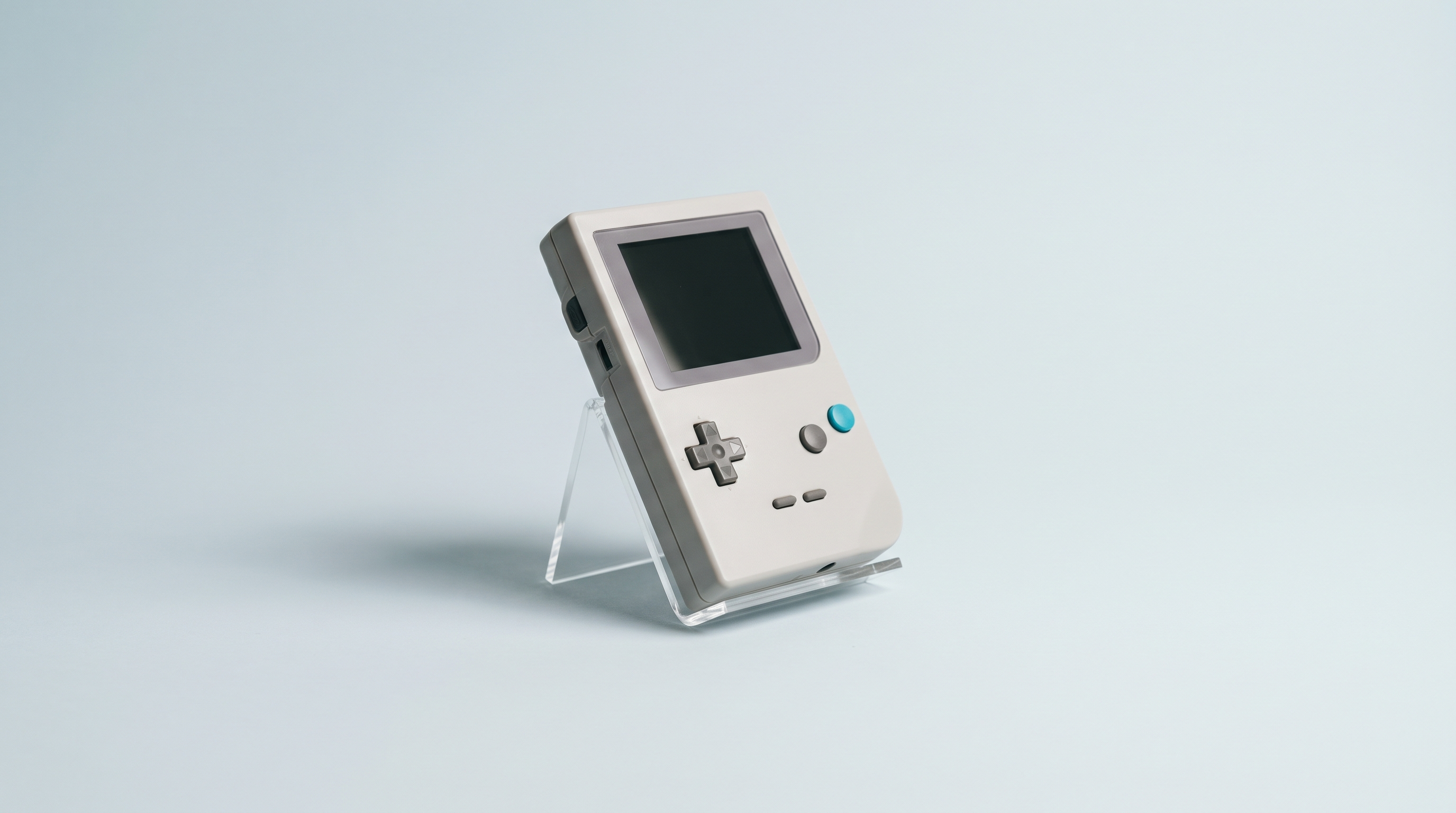
A game stutters, you raise the overclock of the emulated processor, the problem goes away. Three days later, another game starts crashing at the same spot every time, and a third one loses its audio. The culprit isn't the console: it's the setting left active for the whole catalogue. Emulation isn't something you set once and for all. Every title has its own engine, its own programming habits, its own original flaws. Frontends plan for exactly that: one general configuration, and exceptions saved game by game. Here is how they work, what internal resolution, overclock, save states and rewind are really worth, and at what price.
Why a global setting always ends up getting in the way
Emulation options are almost never pure improvements. They are trade-offs: accuracy against speed, fidelity against comfort. What suits one game doesn't suit the next.
The most common example comes from period slowdown. Many Super Nintendo games slowed down when the screen filled up, and the difficulty was tuned around that slowdown. Removing it everywhere makes some titles more pleasant and others unplayable.
Same logic on the image side. Doubling the internal resolution goes through easily on a PlayStation 1 racing game and makes a busy 3D fighting game drop frames. A global setting forces you to hold back to the worst case for the whole catalogue.
How a per-game override works
The principle is a stack of files, from the most general to the most specific: the general configuration, then a file belonging to the emulation core, then a file belonging to the folder, then a file belonging to the game, which has the last word.
The Libretro documentation describes these three override levels in RetroArch and says where they land: a .cfg file stored in /config/<core-name>/, named after the core, after the content folder or after the game. Only the settings that differ from the previous level are written: a well-made override file fits in a few lines.
Two mechanisms not to be confused
There are two families of settings, and they are not saved in the same place.
-
Frontend settings (image, audio, latency, rewind) are locked in from the quick menu,
Overridesentry, then saving for the current game. Result: a.cfgfile. -
Core options (internal resolution, overclock, emulation accuracy) are locked in from the quick menu,
Options, thenManage Core OptionsandSave Game Options, which saves the options for the current content only. Result: an.optfile.
For those files to be read back automatically, two switches must be active in the configuration settings: Load Override Files Automatically and Load Content-Specific Core Options Automatically. That is the number one cause of “I saved it, but nothing happens”. The labels vary with the RetroArch version and the firmware, and some proprietary frontends work differently, to be confirmed depending on the version: remember the logic, not the wording. The basics are in our guide to RetroArch settings.
Internal resolution: what it changes, what it costs
Internal resolution only concerns 3D systems. The emulator has the scene computed at a higher definition than the original console: polygon edges become sharp, textures stop shimmering, the 2D interface generally stays unchanged.
On a 2D game, this setting doesn't exist. A Super Nintendo or Game Boy Advance image is a fixed grid of pixels. What can be adjusted there is the scaling and the display filters.
| System and core | Setting name | Documented range | What the documentation says |
|---|---|---|---|
| PlayStation 1 (Beetle PSX) | Internal GPU Resolution | 1x native, 2x, 4x, 8x, 16x | Fidelity of 3D models “at the cost of increased performance requirements” |
| PlayStation 1 (PCSX ReARMed) | Enhanced resolution (slow) | Double resolution | “At the cost of lower performance”, NEON-compatible devices |
| Nintendo 64 (Mupen64Plus-Next) | 4:3 Resolution | 320x240 to 3840x2880 | “High values require more power” |
| PSP (PPSSPP) | Rendering Resolution | 480x272 to 4800x2720 | No effect if the Software Rendering option is active |
| SNES, Mega Drive, GBA | Not applicable | — | No 3D rendering to scale up |
How far should you go? Lower than you'd think. On Linux consoles built on the Allwinner H700, from the RG35XX Pro to the TrimUI Brick, the PlayStation 1 runs well at native resolution and the headroom for double is thin, game by game. On recent Android machines, Retroid Pocket 5 or 6, the headroom really is there, on PS1 as well as PSP. The reflex stays the same: one notch, ten minutes on the busiest scene, step back down if it drops frames. Our PS1 emulator comparison details the differences between cores, often more decisive than the multiplier.
Two side effects. A high resolution brings out the flaws of the era: poorly drawn fog, stretched textures, a blurry 2D interface next to sharp 3D. And it works the graphics chip continuously, so it heats up and draws power, even when the game isn't stuttering.
Overclocking the emulated processor
This is about speeding up the processor simulated inside the emulator, not the chip in your console. You are not touching the hardware: you are asking the software to act as if the original machine were faster. The actual load does go up, though, since there are more instructions to simulate.
What it is for: removing slowdown that was present on the original console, shortening certain loading times, holding the frame rate when the screen fills up. It does not fix an emulator that is too slow for your machine: if the game stutters because the processor is struggling, emulated overclock makes things worse.
The options are explicit, including about their risks:
-
Beetle PSX,
CPU Frequency Scaling (Overclock): from 50% to 750%, in steps of 10%, default 100%. The documentation states that some games have an internal frame rate limiter and gain nothing, and recommends keeping the default value in most cases. -
PCSX ReARMed,
PSX cpu clockon versions with a dynamic recompiler: from 30 to 100, default 57. The documentation warns that this setting causes compatibility problems and should only be changed for games that need it. -
Snes9x,
Reduce Slowdown (Hack, Unsafe): disabled, light, compatible or max. The name says the essential, and max mode breaks more games. TheSuperFX Frequencyoption, from 50% to 500%, only concerns cartridges with a SuperFX chip. -
Mupen64Plus-Next,
Count Per Op: the number of cycles counted per instruction, hence the simulated speed. Some games only accept one specific value.
Don't confuse this software overclock with the hardware overclock offered by some custom firmwares, which raises the actual frequency of the chip. That one puts the machine's lifespan on the line.
Save states: useful, but fragile
A save state is a photograph of the core's memory at a given instant: registers, RAM, the state of the simulated chips. Nothing to do with the native save, which the game writes itself into its battery or onto its memory card, and which stays readable by any decent emulator.
Hence the limits. A state can only be read back by the software that wrote it. RetroArch's help is explicit: these files are generally not portable and may not work with other versions of the same core. Changing core, updating the firmware or moving from one console to another is enough to make them unreadable. Your progress only holds if it was saved inside the game.
Not all cores are equal either. RetroArch shows a support level for each one: none, basic (save and load), serialised (which adds rewind), deterministic (which adds run-ahead and netplay).
Don't Overwrite SaveRAM on Loading Save State, adding that it can make some games unstable.Two comfort options are worth knowing: Save State: Auto Save, which creates a state when the game is closed, and Save State: Auto Load, which reloads it at the next start-up. Handy on a handheld you switch off mid-session, but it doesn't excuse you from saving inside the game. The full subject is covered in our article on saves on retro handheld consoles.
Rewind and its price
Rewind records states continuously into a memory buffer: holding a button takes the game back a few seconds. It is comfortable on demanding platformers and racing games.
The cost is announced bluntly: RetroArch describes the Rewind Support option as causing a heavy performance loss while playing. On a Linux machine that was barely holding its frame rate, switching it on is enough to make the game drop frames. Two settings go with it: Rewind Frames, the number of frames rewound per step, which sets the speed of the rollback, and Rewind Buffer Size (MB), the memory reserved for the buffer, which determines the depth of history.
Two refusals come up often. RetroArch announces that rewind is unavailable because the core doesn't handle serialised states: change core or give up. Or that it is impossible because the implementation uses threaded audio: it is the audio driver that forbids it. In every case, this setting is switched on game by game, never globally.
The method: one setting at a time, and write it down
Per-game configurations become unmanageable if you stack them at random. A simple protocol is enough.
- Choose a reproducible test scene: the section that stutters, reached in under a minute. A save state just before will do for that single purpose.
- Change one setting only, by one notch.
- Play ten minutes, not thirty seconds: the effects of an overclock show up late, and heating changes the behaviour.
- If it works, save for that game only: core options on one side, configuration override on the other.
- Write it down: a text file on the microSD card, one line per game, title, core, settings, date.
- If in doubt, go back to clean:
Reset Core OptionsandUnload Override.
| Symptom | First setting to try | Associated risk |
|---|---|---|
| Slowdown also present on the original console | Emulated processor overclock, one notch | Disturbed game logic, late crashes |
| Slowdown only in emulation | Lower the internal resolution, change core | Less sharp image |
| Jagged or shimmering 3D | Raise the internal resolution by one notch | Heat, battery life, frame drops in busy scenes |
| A section too hard to replay | Rewind, on that game only | Performance loss announced as heavy |
One last marker: many problems blamed on settings come from elsewhere — an incomplete file, an unsuitable core, a worn-out microSD card. Before spending the evening on it, go through our common causes of a game that won't launch. And if you keep running into the power ceiling, the problem is in the emulation tier you are aiming at, not in the configuration: our retro handheld consoles are sorted by emulated system, each with the state it ships in, ready to play or ready to configure.
Does a setting saved for one game apply to the others?
No, as long as it is saved at the right level: per-game files only load for the game concerned. The classic trap is changing a setting without saving it explicitly: it goes into the general configuration and follows the whole catalogue.
Can emulated overclock damage my console?
It doesn't act on the actual frequency of the chip, so it doesn't take it out of specification. It does increase the load, though, and therefore the temperature and the power draw. It is the hardware overclock in some custom firmwares that puts the hardware's lifespan on the line.
Why won't my save states load after an update?
Because a state matches the internal structure of one precise version of the core, and RetroArch itself points out that these files are generally not portable. Keep the old version long enough to pick up your games and save inside them, then update.
Should I raise the internal resolution on a Linux console?
Rarely, and never by default. On Allwinner H700 models, the PlayStation 1 and the Nintendo 64 are already close to the limit at native resolution depending on the game. Try one notch above on the lighter titles. Recent Android consoles offer real headroom, particularly on PSP.
Does rewind wear out the microSD card?
No, the buffer is in RAM, not on the card. The real cost is performance, described by RetroArch as a heavy loss while playing, plus the reserved memory. On a machine with no margin, switch it on only where it serves you.
How do I start over if I've stacked up too many settings?
Two commands in the quick menu are enough: resetting the core options, and unloading the override, which reapplies the general configuration. Then delete the per-game files that have become useless in the core's configuration folder.