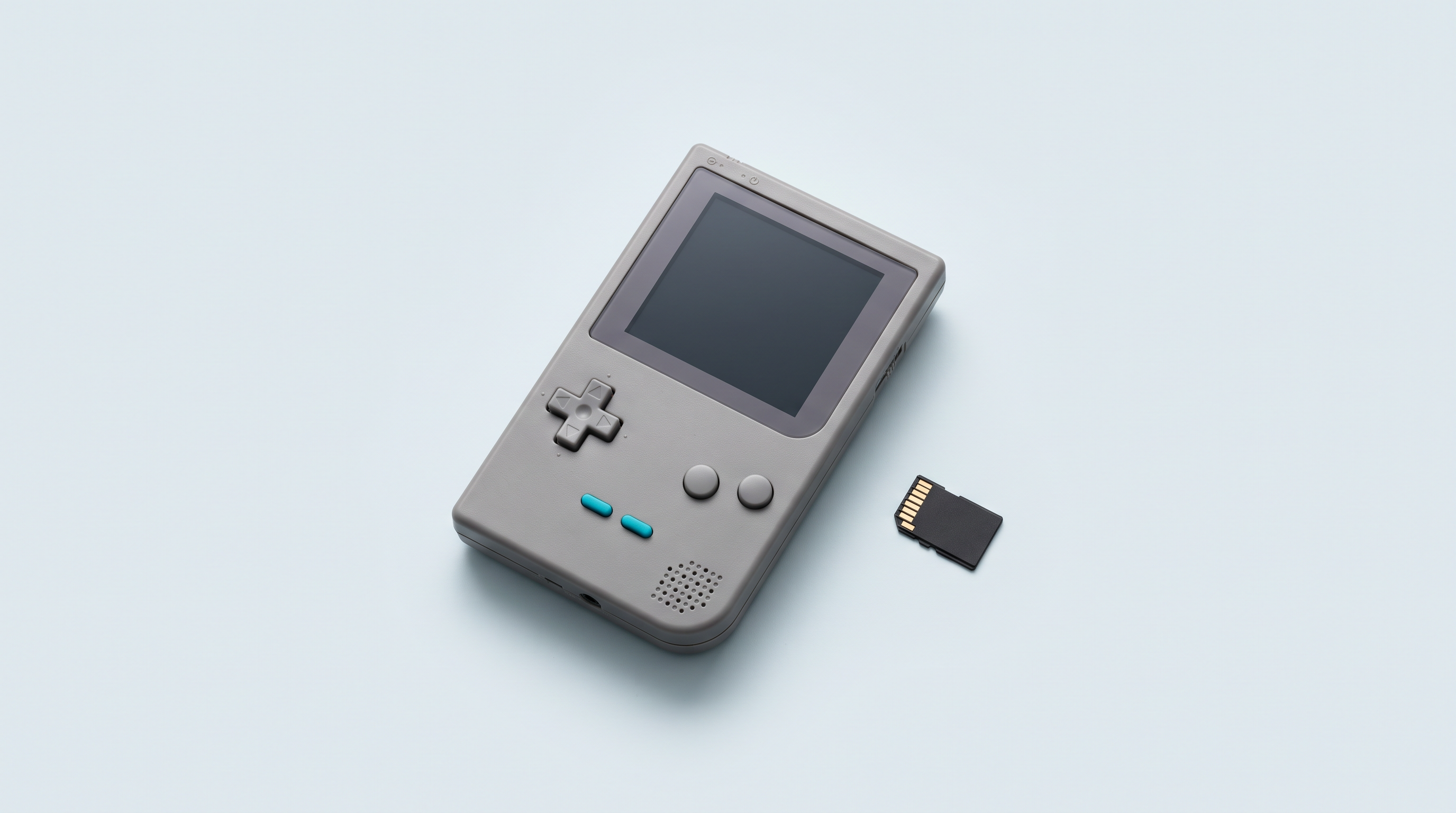
A game that refuses to start is almost always down to a file detail, not a faulty console. Start with three checks: is the file in the right system's folder, have you restarted the console since adding it, and does this system require a BIOS you have not installed. They solve most cases. If yours holds out, the fourteen causes below are ranked from most to least common: work your way down, stop as soon as you recognise your symptom, and apply the fix.
The 14 causes, from most to least common
1. The file is not in the right folder
Symptom. The game does not appear in the list even though it is on the card, or it appears in the wrong category.
Cause. Interfaces (ArkOS, muOS, Knulli, ROCKNIX, Anbernic or Retroid front ends) build their lists from folders, not from the content of the files. A Mega Drive game placed in snes will go to the wrong emulator; placed at the root, nobody will see it.
Fix. Put each file in the folder bearing the system's short name: gba, snes, psx, md, fbneo. Do not invent your own folders, and avoid subfolders if in doubt. Our guide to adding games to a retro handheld console details the expected folder structure.
2. The library has not been refreshed
Symptom. You have just copied files, you put the card back in, and nothing has changed.
Cause. Most interfaces cache the game list. Until it is rebuilt, an added file stays invisible.
Fix. Switch the console off completely, then back on; sleep mode is not enough. If the game is still missing, look in the options for refreshing the list or rebuilding the database.
3. The format is not recognised by this system
Symptom. The file is in the right folder but still does not appear in the list.
Cause. Each emulator only accepts a specific list of extensions and ignores the rest. .chd images work on recent PlayStation, Saturn or Dreamcast cores, but not on older ones, which expect a .cue and .bin pair.
Fix. For CD games, launch the .cue or the .chd, never the .bin on its own: without track information, the game will not start or loses its soundtrack.
4. The file is in an archive the core cannot open
Symptom. The game appears as an archive, then drops straight back to the menu on launch.
Cause. .zip is handled natively by many cores for cartridges, but .7z and .rar almost never are. On CD systems, an archive will not launch: the core needs the extracted files side by side.
Fix. Extract on the computer. Keep .zip for cartridges and arcade, where it is the norm.
5. The BIOS is missing
Symptom. The game is listed, you launch it, the screen goes black for a second or two, then back to the menu. That is the signature of a missing BIOS.
Cause. Some machines did not just run the cartridge or disc: they booted from an internal program burned into the console. The emulator reproduces the hardware, but not that program, which does not belong to it.
| System | BIOS required | Note |
|---|---|---|
| PlayStation 1 | Yes in practice | Replacement boot possible, at the cost of compatibility |
| Sega Saturn | Yes | Region-sensitive |
| Dreamcast | Yes | Two files expected |
| Neo Geo (AES/MVS) | Yes | Separate from the game itself |
| PC Engine CD | Yes | The system card version matters |
| Mega CD / Sega CD | Yes | One file per region |
| Nintendo DS | Depends on the core | Some cores require boot files and firmware, others do without |
| 3DO, Jaguar CD, CD-i | Yes | Niche systems |
| PSP | Optional | Not required to start |
| Game Boy Advance | Optional | The replacement is almost always enough |
| NES, SNES, Mega Drive, Master System, Game Boy, Game Boy Color, N64, WonderSwan, Neo Geo Pocket | No | No BIOS required |
Fix. If your system is in the "yes" column, the file must be in the card's bios folder, with the exact name and case the core expects, and the correct size. A correctly named but truncated file produces the same black screen.
6. The file is corrupted or the copy is incomplete
Symptom. The game launches, then the picture freezes after a few seconds, or the console restarts on its own.
Cause. An interrupted copy, a card removed too early, or a file already damaged at the source.
Fix. Compare the file size on the card and on the computer: if they differ, the copy is incomplete. Copy it again, and wait for the transfer to actually finish before ejecting. If several games are affected, go to cause 11.
7. The wrong core is selected
Symptom. The game launches but the picture is distorted, or you are sent back to the menu without a message.
Cause. The same system often has several emulators, which have neither the same compatibility nor the same requirements: a strict core can reject a game that a more permissive core accepts.
Fix. In RetroArch, open the Quick Menu, change core and relaunch; core association then permanently ties an emulator to a folder. Our essential RetroArch settings show where to find these menus.
8. The console is not powerful enough
Symptom. The game starts, then slows down badly from the first loaded scene, with choppy sound. Or it stops dead after the title screen.
Cause. Emulating PS2, GameCube, Wii, Dreamcast or Saturn takes far more processing power than 8-bit or 16-bit systems, and a console advertised for a system often only handles part of its catalogue.
Fix. Lowering the internal resolution, turning off filters and choosing a lighter core can be enough for borderline cases. Beyond that, there is no software fix.
9. The arcade romset does not match the emulator
Symptom. The arcade game appears in the list but refuses to start, reports missing files, or gets stuck on a test screen.
Cause. An arcade game is not a single file: it is an archive of dozens of components, each corresponding to a chip on the original cabinet. A romset is the state of that collection at a given version of the emulator; from one version to the next, components are renamed, added or split differently. The emulator checks that the archive matches exactly what it expects and rejects anything else, even when the game's name is right.
Fix. Identify the version of your console's arcade emulator, often shown in its name, and use matching archives. On Neo Geo, add the system BIOS. A clone archive needs its parent archive in the same folder.
10. The file is larger than 4 GB on a FAT32 card
Symptom. The copy stops with an error, or the file seems to be copied but the game will not launch.
Cause. FAT32 cannot store a single file of 4 GB or more, whatever the card's capacity. This mainly affects PS2, GameCube and Wii images.
Fix. Compress the image into a format your emulator accepts, which brings most games under the limit. exFAT removes it, but many firmwares require FAT32 on the first card: check before reformatting.
11. The microSD card is badly formatted, badly inserted, or has a fake capacity
Symptom. The problem affects several games and appears gradually: games that worked yesterday no longer launch, the console intermittently stops seeing the card, files disappear.
Cause. Three cases. Wrong formatting, in exFAT or NTFS when the firmware expects FAT32. A badly inserted card or a dirty card slot, causing random dropouts. And the most frustrating: the counterfeit card.
A counterfeit card advertises a capacity it does not have: its controller reports 512 GB when the real memory is 64. Below that real capacity, everything works: the card formats, files copy, games run. Beyond it, writes are still accepted without any error message, but the data silently overwrites what is already there. You end up with randomly corrupted games, often long after purchase.
Fix. Check the card with a full write-then-read-back verification: you fill it with known data, then read everything back and compare. A healthy card reads back exactly what was written; a counterfeit one fails beyond its real capacity. It takes a while, but it is the only reliable method: the capacity shown by your file manager proves nothing. See how to choose a microSD card and our selection of microSD cards.
12. Special characters in the file or folder name
Symptom. A single game does not appear while its neighbours in the same folder are there, or its name displays with garbled characters.
Cause. Some emulators and firmwares handle accents, apostrophes, colons and non-Latin characters poorly. The file exists, but the program cannot open its path.
Fix. Rename it keeping only letters, numbers, hyphens, underscores and dots, folders included. Careful: renaming means updating any .m3u file, and can break the link with the save.
13. A multi-disc game without an .m3u file
Symptom. The game runs until the end of the first disc, asks you to change discs, and you cannot do anything. Or launching the second entry does not continue your game.
Cause. The emulator does not guess that it is one game spread across several media. You have to declare it with an .m3u, a simple text file listing the discs in order.
Fix. Gather the discs in one folder, create a text file next to them listing the exact name of each disc image, one per line, and save it as .m3u. Launch this .m3u and not the discs: swapping is then done from the Quick Menu, and the memory card save is shared.
14. The save is corrupted and prevents launching
Symptom. A game that had been working for weeks no longer starts even though nothing has changed on the card. It crashes right after the title screen.
Cause. A sudden shutdown, a battery running flat in the middle of an autosave or a failing card can leave a half-written save file. Some emulators load it before displaying the picture and hang on it.
Fix. Move the save file out of the folder without deleting it: it carries the game's name, with an extension such as .srm or .sav. Relaunch; if the game starts, the save was the culprit. Now is the time to adopt the routine described in our article on retro handheld console saves.
Nothing worked
If you have gone through all fourteen causes without finding anything, the quality of your description determines the help you will get. Provide these six details:
- The exact console model. "Anbernic" is not enough: the models have neither the same chip nor the same firmware.
- The firmware and its version, as shown in the system information, specifying whether it is stock or custom.
- The emulated system and, if you know it, the core used.
- The file format, extension included, and its size.
- The exact error message, copied out or photographed, without rewording it. If there is no message, say so and describe what you see.
- What you have already tried, so nobody makes you start over.
Then write to us via the contact page, giving your order number if the console came from us.
Frequently asked questions
Why does my game show a black screen and then go back to the menu?
In the vast majority of cases, it is a missing BIOS on a system that requires one: PlayStation 1, Saturn, Dreamcast, Mega CD or PC Engine CD. Check the table in cause 5. If the system does not need one, look at the file or the core.
Do you sell consoles with the BIOS files already installed?
No. A BIOS is protected software and distributing it is illegal, including preinstalled on a card. Our where to play legally page presents the official alternatives.
My game appears in the list but will not launch. Where do I start?
If it appears, the file is in the right place and its extension is recognised: causes 1 and 3 are ruled out. Look at the BIOS, the selected core and the file's integrity. Comparing its size with the original is the quickest check.
Should I format my card in FAT32 or exFAT?
FAT32 by default: it is what most firmwares expect, and some refuse to boot on anything else. exFAT is only justified for files of 4 GB or more, and only if your firmware supports it.
How can I tell whether my microSD card is counterfeit?
Only a full write-then-read-back verification proves it: you fill the card with known data, then read everything back to compare. A counterfeit card fails beyond its real capacity. A very low price for a very high capacity is the main warning sign when buying.
My arcade games will not start even though they worked elsewhere. Why?
Because arcade archives are tied to a specific emulator version, which expects a given split of the internal files. Find out which one your console uses and use matching archives. On Neo Geo, the system BIOS is required in addition to the game.